Mass Email with HTML Templates
Upload your own HTML e-newsletter template as a ZIP file and send it to selected contacts.
StudentLogic system can convert properly-formatted ZIP files that contain your custom HTML and assets into functional e-newsletter or other mass email templates. Upload a ZIP file from New Mass Email to create your e-newsletter from your own HTML. In this article, you’ll learn how to upload a ZIP file that contains template HTML code and assets from the Mass Email.It’s advisable to let your designer read this guide too to know how to prepare your HTML template correctly. The upload is already very easy and can be done by any user in the system with access to Mass Emails.
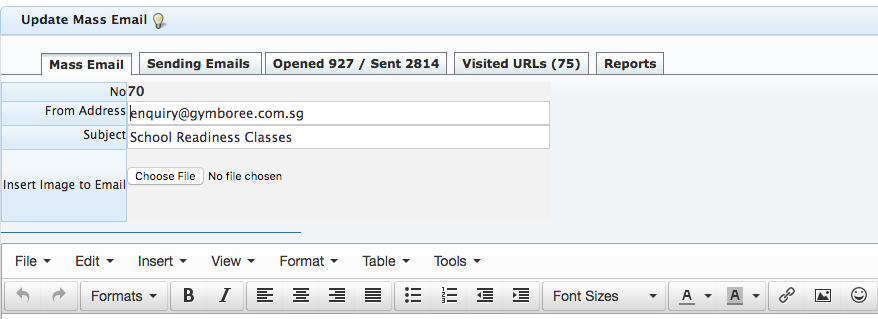
1. Create New Mass Email.
Go to CRM/ Notifications/ Mass Emails and create new Mass Email as per normal. Click on button “Create” to save your new mass email first.
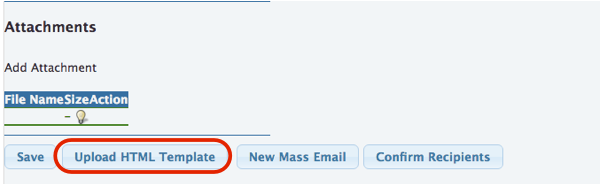
2. Tips for creating your ZIP HTML template.
Scroll down and click on “Upload HTML Template” button to insert your HTML code correctly. This step is very easy but your HTML that you are attaching must be correctly created first.
Use the checklist below to be sure your ZIP file is properly formatted and ready for upload.
- Include only one HTML file in your ZIP file. If you have more than one HTML file, we’ll use the first one we find. Make sure your HTML file’s character encoding is UTF-8.
- Format all images as JPG, JPEG, PNG, or GIF.
- Place all images and files in the root directory of the ZIP file and not in subfolders. We’ll upload all your images and files to our back-end Content Manager and create absolute paths for you when we convert your ZIP.
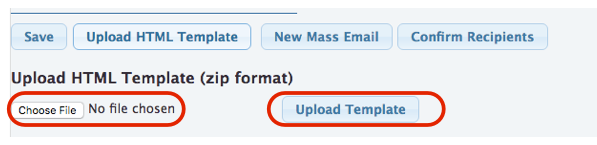
3. Upload your HTMP ZIP template.
To upload the HTMP ZIP Template:
1. Click on button “Upload HTML Template”.
2. Click on “Choose File” and find ZIP file on your computer.
3. Click “Upload Template”.
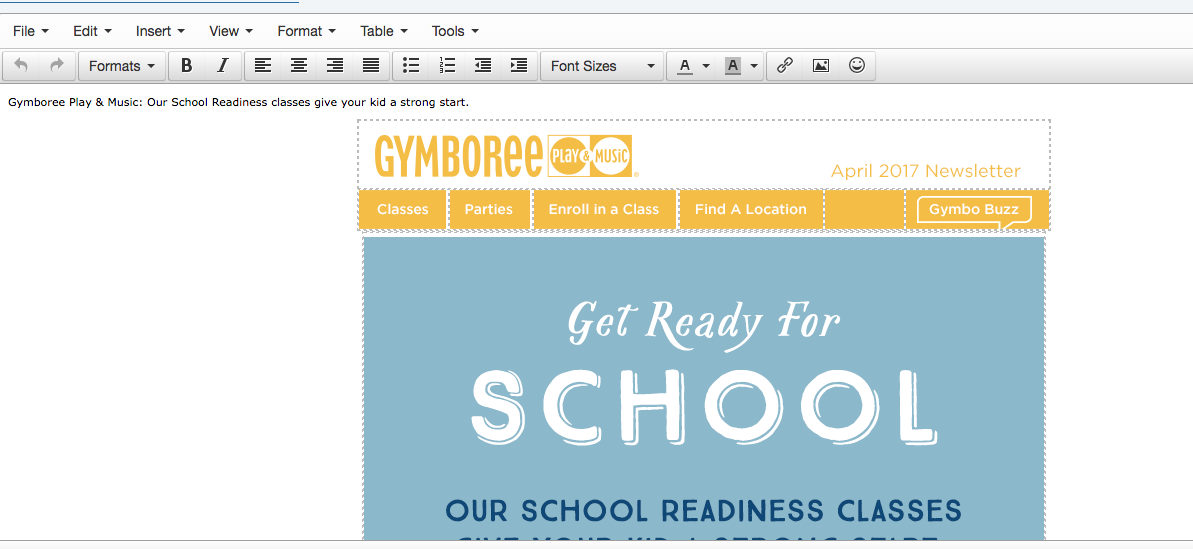
4. If all is OK with your ZIP file the template will show nicely in the body of the email you are creating and all images will be listed below as they were auto uploaded during upload into our system.
4. Troubleshooting the Upload of HTML ZIP template.
If you see the error message The archive was empty or otherwise corrupt when uploading the file, there is an issue with the file. Take a look at the troubleshooting tips below to make sure your file is compatible for the upload.
- File Name Spaces or unusual characters in the filenames included in the ZIP file can cause problems when you import. We recommend that you limit filenames to contain only letters, numbers, and hyphens.
- Relative PathsWhen you upload a ZIP file, we’ll create the absolute paths for you. We can’t pull in images or files from other folders or subfolders, so use only the filename in your code, with no location information in your link sources.
- Case SensitivityThe upload is case sensitive so your code must match your filenames exactly.
- HTML ErrorsReview your code and run your HTML through a validator to help you catch any problems or errors.
Need help with this?
Email our support team at support@nextlogic.com.sg with a screenshot of the screen in question.
All features & guides